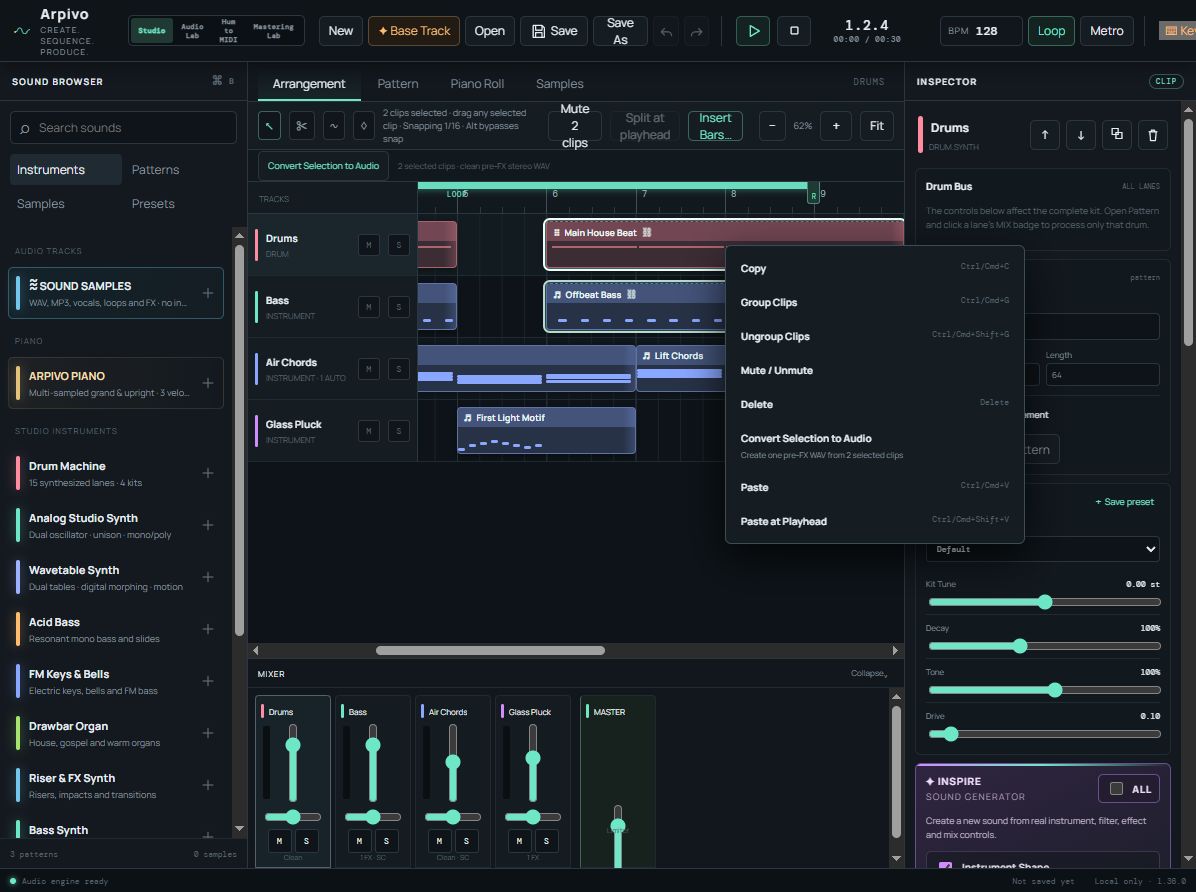
Arpivo is a complete music production studio that runs in your browser. This guide teaches the real workflow, from shaping a rhythm and writing notes to arranging, mixing, automating, saving and exporting your music.
No accountProjects stay local100% freeSearchable guide
How to use this guide
Follow Quick Start once, then use the chapter list or search whenever you meet an unfamiliar control. Every heading has a permanent link, so you can bookmark a precise answer.
CHAPTER 01
Start here
Understand Arpivo's musical building blocks, then make something audible in a few focused steps.
Beginner
Quick Start: make your first track
Open the Studio and press Start studio. Browsers require a deliberate click before they allow sound. The opening project is Liminal (Demo Track) by Andy Ossia, provided for learning. To build your own track with these steps, choose New → Blank first. Headphones are a good idea.
Build a beat. Choose Pattern, then click steps on the Kick, Clap and Closed Hat lanes. Press Play or the space bar to hear the pattern.
Give the beat shape. Shift-click a lit step to cycle its velocity, or use Generate for a new editable rhythm. Drag the pattern from the Sound Browser onto a drum track in Arrangement.
Add an instrument. Open the Instruments tab in the Sound Browser and choose a synth. Arpivo adds a track and opens its MIDI clip in the Piano Roll.
Write notes. Click in the Piano Roll to draw notes, drag to move them and drag a note's right edge to change its length. Use a small group of notes first.
Arrange a beginning and a change. Return to Arrangement. Duplicate clips with Ctrl/Cmd + D, move them, and leave gaps or create variations so the track develops.
Mix and add one effect. Select a track, adjust Volume or Pan in the Inspector, then add Reverb, Delay or another insert effect. Keep the Mix control modest while learning.
Save before you leave. Choose Save to store the project in this browser. Use the Open dialog's Export backup option for a portable .arpivo copy.
Export the finished audio. Choose Export Audio, select 16-bit WAV, 24-bit WAV or 320 kbps MP3, then choose Choose location & render. Keep the tab open until the stereo file is ready.
Important
Browser storage is local to this browser profile on this device. Export a project backup for work you cannot afford to lose.
Understanding the Studio
Think of Arpivo as a chain. The Sound Browser supplies instruments, patterns, samples and presets. Tracks hold musical clips. Editors change the contents of those clips. The Inspector and Mixer shape the sound. The Arrangement decides when everything plays.
Top toolbar
Project commands, transport, BPM, Loop, Metro, Snap, Quantize, Swing, Keyboard, audio export, Help and the Studio/Lab workspace switcher.
Sound Browser
Add instruments, find patterns, import or drag samples, and recall presets.
Main editor
Switch between Arrangement, Pattern, Piano Roll and Samples according to the material you want to edit.
Inspector and Mixer
Edit the selected track, clip, sound, effects, automation and snapshots. Use the Mixer for fast balance decisions.
The same track can appear in several places. Select it in the Arrangement or Mixer, edit its notes in the Piano Roll, then return to the Inspector for its instrument and processing. Changes remain part of one project.
Choose your first project route
Each normal Studio visit opens a fresh, editable copy of Liminal (Demo Track) by Andy Ossia, beginning at the start of the song. It is a complete arrangement you can play, solo and edit to learn how the parts fit together. Music rights remain with Andy Ossia; the demo is provided for learning only.
Choose Save or Save As to keep your edited copy in this browser. On a later normal visit, use Open to resume that saved copy. Returning from a linked Lab workspace restores the project you were working on. New offers a Blank setup or starter tracks, while Base Track composes a fresh arrangement for your own music.
Learn by editing
Use the opening project. Solo tracks, move notes and change steps to learn by cause and effect.
Start sparse
Choose New and Blank when you want fewer tracks and more empty space.
Start with structure
Use Base Track when arrangement and instrumentation are the hardest part of a blank page.
Start from a sound
Add an instrument from the Sound Browser and let its role suggest the first musical part.
CHAPTER 02
Workspace and timing
Learn what the global controls change and how Arpivo measures musical time.
The Sound Browser
The four tabs organise reusable material. Instruments adds a new playable track. Patterns lists drum patterns that can be dragged to a drum track. Samples lists locally imported audio for dragging into the timeline or loading into a Sampler track. Presets collects sound starting points. The library search narrows the current list.
Tip
Choose the material first, then the right editor. Drum patterns belong in Pattern; MIDI clips belong in Piano Roll; imported recordings are managed in Samples and placed in Arrangement.
Toolbar and transport
Play / Stop
Starts from the current song position or stops playback. The space bar is the fastest toggle.
Position
Shows bars, beats and sixteenth notes as values such as 1.1.1.
Elapsed time
The current / total time readout shows your Arrangement position in minutes and seconds. Total time ends at the last placed clip; effect tails and empty timeline space are not included.
BPM
Sets tempo from 60 to 200 beats per minute. A higher value plays the musical grid faster.
Loop
Repeats the locator range in Arrangement playback.
Metro
Turns on the metronome, with a brighter click on the first beat of each bar.
Undo / Redo
Steps backwards or forwards through editing history.
Keyboard
Opens the movable Virtual MIDI Keyboard for auditioning and live note recording.
Timing, snap, quantise and swing
Snap guides placement and editing to a musical division: 1 bar, 1/2, 1/4, 1/8, 1/16 or 1/32. Hold Alt while dragging an arrangement item to bypass snap temporarily. Quantize is different: it actively moves selected Piano Roll notes, or every note in the clip, to the chosen 1/4, 1/8, 1/16 or 1/32 grid.
Swing, from 0 to 60%, delays alternating sixteenth-note positions. A little can soften a rigid rhythm; too much can pull instruments apart if their parts were not written for the same feel.
Example
Use 1/16 snap to draw a tight bass rhythm. Quantise an imperfect recorded take to 1/16, then add a small amount of swing to the whole project if the groove feels too mechanical.
Enter exact slider values
In Studio and the Lab workspaces, click a slider's displayed value, or focus it with the keyboard and activate it, to type an exact setting. The slider remains available for quick changes.
Press Enter to apply, Escape to cancel, or click outside to apply a valid entry. Recognised units such as Hz/kHz, ms/seconds, dB, percentages and cents are converted where appropriate. Invalid entries are rejected and values outside the control's range are limited to its minimum or maximum.
Example
Click a cutoff readout and type 125 Hz when you need that exact frequency, even if dragging the slider normally moves in larger steps.
Tracks and the Inspector
A track is a channel that owns clips and a sound path. Track headers provide Mute and Solo. The Inspector follows the selected track and clip, letting you rename, reorder, duplicate or delete the track, edit clip timing, set channel controls, shape the instrument, build an effect chain, add automation and manage Sound Snapshots.
Duplicate track is the overlapping-squares button beside the track order controls at the top of the Inspector. It creates a complete independent copy directly below the original, including its clips, notes or drum patterns, sound, effects, mix settings, automation, snapshots and Micro Nudge. The copy is selected immediately and named with Copy, Copy 2 and so on. Sample audio is safely referenced rather than stored twice. Edit or delete either version independently, and use Undo if you duplicated by mistake.
Micro Nudge in the Channel card plays the whole selected track slightly earlier or later without moving its clips or notes. Negative values play early, positive values play late, and Reset timing returns to 0 ms. Click the displayed value when you want to type an exact setting. This is useful when a piano, sample or other sound has a naturally slow or fast attack.
Use track names that describe musical jobs, such as Sub Bass, Air Pad or Main Clap. Clear roles make a larger arrangement and mixer much easier to read.
Beginner friendly
Inspire: generate a new sound
Inspire creates a fresh sound on the selected track by changing its real controls. It does not cycle through a hidden list of presets, and it never changes your notes, clips, arrangement or automation. Find it in the Inspector beneath the instrument controls.
Instrument Shape
Changes the current instrument's tone, envelopes and other core character controls. It is unavailable on Sound Samples tracks because an audio track has no instrument.
Filters
Creates new, musically bounded channel or instrument filter settings.
Effects
Adjusts the current effects and can add a small, safe effect combination when needed.
Mix / Character
Changes pan, ambience sends and gentle EQ character without changing track volume, Mute or Solo.
Select the instrument, drum, Sampler or Sound Samples track you want to explore.
Tick the categories Inspire may change, or use All to select everything available.
Move Variation towards Subtle for a related variation, or towards Wild for a larger but still bounded change.
Choose Generate Sound. You can keep editing every generated value normally.
Previous Sound restores the state from immediately before the last Inspire change and can be pressed again to compare the two sounds. Save Preset stores the generated instrument and processing state as a named user preset in this browser. On a Sound Samples track, use Sound Snapshots for complete reusable track states.
Try it while looping
Loop a short musical section, start with Instrument Shape and Filters at a medium Variation, then add Effects only when the core sound already supports the part. Inspire uses safety limits, but your ears remain the final judge.
CHAPTER 03
Drums and patterns
Create a groove at step level, then turn it into arrangement sections and variations.
Beginner
Drum sequencer
Each row is a drum voice and each square is a sixteenth-note step. Click a square to turn it on or off. Shift-click an active step to cycle through softer and stronger velocities. This lets a repeated rhythm breathe without adding more hits.
Pattern lengths can be 8, 16, 32 or 64 steps. Duplicate copies the reusable pattern into the library. For a fill at one point in your song, right-click its Arrangement clip and choose Edit This Clip. Reset timing clears any subtle timing offsets. The editor can play Pattern only for focused work or the Full arrangement for context.
Build a dependable four-on-the-floor groove
Place Kick on steps 1, 5, 9 and 13. Add Clap or Snare on 5 and 13. Put Closed Hat between the kicks, then add one quieter off-grid percussion hit. Get the balance right before adding density.
Intermediate
Edit individual drum clips
Keep reusable patterns in the Sound Browser, then make arrangement-only variations without adding more library patterns. Right-click a drum-pattern clip and choose Edit This Clip, or use that button in its Clip Inspector. The existing drum grid opens with a CLIP DRUM CONTENT heading, the clip name and its arrangement position.
The editor expands the repeated content across the clip's current length. In a four-bar clip, change the final bar to add a one-off fill; the earlier bars stay independent.
Click to toggle hits; Shift-click cycles velocity. The selected hit's Inspector also provides exact Velocity, Probability and Timing offset (ticks). Right-click a grid cell to select it without toggling it. Type an exact value and press Enter or leave the field to commit it. Reset timing clears the draft's offsets. Probability remains chance-based: a duplicate keeps the probability setting but may play a different set of hits on another pass.
Long clips use pages of up to 64 steps. Previous and Next keep the original step numbers, so you can edit a specific position without drawing the entire song at once. Add Drum Lane creates a clip-local custom lane; drop a library sample onto its lane label. A custom lane stays silent until a sample is assigned. Use Lane name to rename it within this clip, Clear clip sample to remove its sample assignment, or Delete clip lane to remove a custom lane from the draft. Clearing a factory lane's sample restores its built-in voice; factory lanes cannot be deleted. These changes affect the clip draft only and support Undo.
Choose This clip only to preview your draft. Full arrangement plays the saved project; save the draft first to hear its changes in song context. Editing a draft stops its current preview so the next Play starts with the revised data.
Save Clip commits notes and overrides together and returns to Arrangement. The clip gains an EDITED badge. Cancel / Close discards the draft. Undo and Redo work inside the draft; after Save Clip, the entire saved edit is one project Undo/Redo command. Toolbar Save and Ctrl/Cmd+S also commit an open draft before saving the project.
The original source pattern and other instances keep their musical data. Select a pattern in the Sound Browser for normal source editing after saving or cancelling a clip draft. A saved clip variation remains independent of later source edits.
Ctrl/Cmd+C and V, Duplicate, grouped and multi-track copying preserve the complete variation and its settings; every new copy can be edited independently. Existing paste positions are unchanged: ordinary Paste appends after the copied span unless you explicitly position it; Paste at Playhead uses the current playhead. Moving a clip preserves all local hit positions.
Shortening a saved variation hides notes past its right edge. Extending it repeats its whole saved variation, including a fill, rather than repeating the original source pattern. Reopening and saving materialises the newly visible span as the next full variation cycle. A partial final grid step retains the clip's exact timeline end; the saved repeat cycle is a whole number of grid steps. The musical content and settings survive project saving, loading and audio export. Save the project after committing your clip edits. Existing projects and unedited pattern clips keep their normal workflow.
Clip effects and automation priority
In Edit This Clip, select a drum lane. Its Clip Inspector exposes inherited Volume, Pan, Reverb/Delay sends and the parameters of that lane's existing effect chain. Change a value to create a highlighted Clip override; Reset removes just that override. Add or reorder inserts in the normal Pattern lane Inspector before opening the clip. Lane mute/solo, kit shaping, Drum Bus EQ/filter/inserts and track automation remain track controls.
For example, add Ping-Pong Delay to the tom or conga lane with 20% feedback. In the selected clip's Inspector, set Feedback to 80%. Other clips retain 20%. Duplicate the edited clip to retain the fill and 80% setting; changing the copy to 50% does not alter the first clip.
Priority is resolved per exact lane/effect/parameter identity: active timeline automation → clip override → inherited lane setting. A lane is active when it has points and is enabled; as elsewhere in Arpivo, it holds its first/last values before and after the curve. A feedback curve at 40% therefore wins over a clip's 80% while preserving that stored override. Disable automation in the Track Automation tools, remove the lane or clear its points to restore the clip value; Enable automation restores the curve. Unrelated Drum Bus filter automation continues alongside the feedback override. A Filter insert's cutoff only conflicts with automation addressing that same insert and cutoff, not with similarly named controls.
The Inspector identifies automation taking priority at the clip preview position. Reset remains available while automation is active. Clip-only preview reads automation at the clip's song position; use the main timeline to hear the complete arrangement.
Different simultaneous clip settings use isolated processing on the affected drum lanes through the existing effect factories. Identical settings can share a route. Outgoing delay/reverb tails continue into adjacent clips and feed the Drum Bus and its automation. Retired routes are released after their source and conservative effect-decay interval; unmodified clips allocate no private effects. Long-feedback clips can require more processing and longer audio exports. Strict selection/range renders keep their explicitly requested boundaries.
Drum voices and kits
The Drum Machine starts with 15 factory lanes: Kick, Clap, Closed Hat, Open Hat, Snare, Ride, Shaker, Perc, Low Tom, Mid Tom, High Tom, Rimshot, Crash, Cowbell and Tambourine. Click a lane name to select and audition it.
Start from Default, 909 Club, 808 Classic, Deep House or Trance Punch. A kit changes the shared character while every lane remains independently mixable. You can also drag an imported sample onto a lane to replace that lane's synthesised hit within the pattern.
Custom drum lanes and samples
The 15 factory lanes are a starting point. Choose + Add Drum Lane in Pattern to add a custom sample-only lane. It stays silent until you drag an imported sample onto it.
Select the lane and edit its Name in the Inspector's Lane Identity card.
Assign a sample, draw steps and set their velocities normally.
Use the lane's Volume, Pan, Mute, Solo, effects and sends to mix it independently.
Clear Sample makes a custom lane silent. On a factory lane, Return to Built-in Voice restores its synthesised sound. Delete Lane is available for custom lanes only and asks for confirmation; Undo restores the deletion. Factory lanes remain permanent. Custom lanes work in Pattern and Arrangement playback, saved projects and final audio export.
Drum kit shaping
Kit Tune
Moves the kit from 12 semitones down to 12 up. Small moves can help the kick and toms sit with the song's key.
Decay
Controls how quickly hits die away. Shorter settings tighten a busy pattern; longer settings add weight and wash.
Tone
Shifts the kit's overall brightness. Reduce it for softer drums or raise it when attacks need to cut through.
Drive
Adds harmonic density and bite. Raise it gradually because more drive also makes a kit feel louder.
Per-drum mixing and effects
In normal source-pattern editing, select a lane and choose MIX for its track-wide Volume, Pan, Mute, Solo, insert effects and Reverb/Delay sends. Use clip effect overrides when those settings should vary for just one Arrangement clip. Each lane flows through its own effects and sends, then into the Drum Bus and Master. This means you can saturate the kick, widen a shaker and add delay to a rimshot without processing the entire kit.
Use lane Solo when a small sound is hard to hear, but return to the complete kit before making final level decisions. The important question is how the drum works in the groove.
Patterns, variations and arrangement workflow
A reusable pattern holds shared step data; its Arrangement clips decide when it plays. Editing the source changes clips that still use that shared content. For a one-off fill, right-click a clip and choose Edit This Clip: its notes and overrides belong to that clip, and later source edits leave the saved variation unchanged. Extending an unedited clip repeats its source pattern; extending a saved variation repeats the whole saved variation. Make unique pattern remains available when you deliberately want another visible, reusable pattern in the library.
Eight-bar drum development
Use the main groove for bars 1 to 7. Duplicate a clip for bar 8, choose Edit This Clip, remove one kick and add a tom or snare fill, then Save Clip. Duplicate that variation elsewhere when you want the same fill, or edit its copy independently for the next transition.
Delete a drum pattern
Open Sound Browser → Patterns and choose Delete beside the pattern. An unused pattern is removed in one Undo step. Deleting the last unused pattern leaves a Create pattern prompt.
If any Arrangement clip uses it, including a muted clip, deletion is blocked. Arpivo opens the Arrangement, names the affected tracks and highlights every matching clip in bright red with an IN USE badge. Scroll through the timeline to find them; scrolling keeps the warning visible.
Remove unwanted uses from the Arrangement, then retry deletion. The next editing or selection action clears the temporary warning; it does not delete any clips. Identically named patterns are separate items, so choose the correct one. Use Undo/Redo to restore or repeat a successful deletion.
CHAPTER 04
Instruments and sound design
Choose the right sound source, understand its controls, and give each part a clear musical role.
Instrument tracks
Choose an instrument in the Sound Browser to add a playable track with a four-bar MIDI clip. Notes in that clip trigger the instrument. The Inspector holds its sound controls, while track EQ, filter, effects and sends shape the channel after the instrument.
Good to know
An instrument filter belongs to the sound itself. The Channel Filter is a later mixing stage. Either can be automated, so choose the one that best matches the job.
Beginner friendly
ARPIVO PIANO
Open Instruments in the Sound Browser and choose ARPIVO PIANO. This is a genuine sample-based acoustic instrument, built from stereo Kawai grand and Yamaha upright recordings with three velocity layers. Play softly for a gentler recording and harder for a brighter, stronger layer.
The first piano from each family needs a one-time local download. Its loading percentage appears in the Inspector, and the browser can reuse the cached files afterwards. If loading fails, check the connection and choose the piano or preset again.
Grand and dance
Concert Grand, Intimate Grand and Bright Pop Grand cover natural playing. Trance Piano, Progressive House Piano and the other dance presets are brighter and more mix-ready.
Cinematic
Cinematic Grand, Emotional Grand, Nocturne and Film Piano add space, softer attacks and longer releases. Felt Intimacy is an intentionally processed upright sound rather than a separately recorded felt piano.
Upright
Warm Upright and Bright Upright use the more compact Yamaha recording for house, pop and intimate parts.
Tone changes the overall brightness; Vibrance adds upper presence; Body changes the lower warmth; and Softness rounds the attack. Dynamics controls how widely playing strength changes the sound. Resonance, Stereo Width and Room shape the instrument's space.
Open Advanced piano controls for Attack, Release, Velocity Curve, pedal and mechanical noise, Character, Low Cut, Transpose, Fine Tune, listening Perspective and Polyphony. Player and Audience perspectives reverse the stereo keyboard orientation; Close and Room adjust the sense of distance. These settings can be automated and included in Sound Snapshots like other instrument controls.
Play and record with sustain
Select or arm the piano track, open the virtual keyboard and play normally. Use its Sustain button, or a physical pedal sending MIDI CC64, to hold released notes. Record the performance through Arpivo's normal live-recording workflow; the resulting notes remain ordinary editable Piano Roll notes. Sustain extends recorded note lengths until the pedal is released.
A clean starting workflow
Choose Concert Grand, record or draw the notes, then adjust Tone, Softness and Dynamics while listening in the arrangement. Add Room only after the part works musically, and use the normal channel effects when you need delay, compression or a larger reverb.
Bass Synth, PolySynth, SuperSaw, Pad and Trance Pluck
These instruments share an approachable subtractive-synth layout. Choose a sine, triangle, saw or square Waveform. Cutoff sets how much high-frequency content passes, while Resonance emphasises the cutoff area. The Filter Envelope switch lets the note envelope animate the filter.
Attack, Decay, Sustain and Release describe the sound over time. Attack controls how quickly it begins, Decay moves towards the held Sustain level, and Release controls the fade after the note ends. Fine Tune shifts pitch by cents for subtle tuning, while Output sets the instrument level.
Bass Synth
Focused low-end parts. Includes Offbeat Trance Bass, Deep House Bass and Sub Bass starting points.
PolySynth
A flexible source for chords, stabs and simple polyphonic parts.
SuperSaw
Wide, bright stacked-saw character for trance leads and energetic layers.
Pad / Strings
Longer, softer notes for atmosphere and harmony, including Warm Trance Strings.
Trance Pluck
Short rhythmic tones that suit arpeggios, hooks and delayed sequences.
Analog Studio Synth V2
A deeper subtractive synth organised as Oscillators → Source Mixer → Filter → Amp, with collapsible sections for envelopes, voice settings and modulation. Start with a V2 factory preset, then open only the sections you need. The original factory presets and older projects retain their original sound engine until you choose a V2 preset or enable V2 on that patch.
Oscillators 1 and 2 each have sine, triangle, saw and square/pulse waves, octave, tuning and level. Osc Balance sets their blend. Pulse Width changes the shape of a square wave; route an LFO to Pulse Width in the Mod Matrix for moving PWM strings. Hard Sync resets Oscillator 2 from Oscillator 1 for sharper sync leads. Ring Mod blends in the product of both oscillators for metallic tones. The Source Mixer also has a sine/square sub oscillator at one or two octaves down and white/pink noise.
Filter offers low-pass, high-pass, band-pass and notch modes, Cutoff, Resonance and Key Tracking. The separate Filter Envelope has Attack, Decay, Sustain, Release and a bipolar Amount: positive opens the filter at note-on, while negative moves it the other way. The Amp Envelope controls loudness independently. Pitch Envelope Amount, Attack and Decay can make a subtle transient or a large dive or rise.
Unison layers up to seven detuned voices with adjustable stereo spread; keep spread low for a focused bass. Poly plays chords, Mono plays one note at a time, and Legato helps overlapping notes flow together. Glide can apply always or only to Piano Roll slide notes. Drive adds grit; Drift and Variation add restrained analogue movement.
LFO 1, 2 and 3 can run freely or sync to the current project BPM, including rhythmic and multi-bar divisions. Choose a shape and whether it restarts with each note. In the eight-route Mod Matrix, choose a Source, Destination and positive or negative Amount for each route. For example, set LFO 1 → Filter Cutoff for a slow sweep, or Filter Envelope → Pulse Width for an animated attack. Velocity can shape loudness and filter brightness even when notes are entered with the Piano Roll.
Try Tech House Bass for a short low-cutoff bass with a bright attack, Wide Reese for detuned movement, PWM Strings for a gentle evolving pad, or Sync Lead for a hard-sync sound. Continuous controls such as cutoff, pulse width, ring amount and modulation amounts can also be automated with Arpivo's normal automation lanes; those changes affect sustained V2 notes and render into the exported audio.
Playback efficiency (v1.41.3): V2 reuses constant oscillator, source-mixer, Drive and gain calculations while the filter envelope moves; envelope shaping and filtering still run sample by sample. Notes can also reuse oscillator calculations after glide reaches its target. Glide, envelopes, modulation, automation, stereo sound, voices and exported audio retain their existing behaviour. There are no new controls or quality settings. This staging candidate still needs repeated full-effects playback testing; it is not certified free of audio underruns.
Try a sustained chord
Add an Analog Studio Synth track, choose Air Pad, keep Voice Mode on Poly, then hold several notes on the virtual or USB MIDI keyboard. Adjust Amp Attack for the swell and Release for the fade after you let go. Save your sound with Save preset; for movement across a song, add a Track Automation lane for a continuous control such as Cutoff. The same V2 sound is used for live playing, Arrangement playback and audio export.
Sound design
Wavetable Synth
Choose Wavetable Synth from the Instruments list for digital, evolving and spectral sounds. Analog Studio Synth V2 is the better starting point for warm, traditional analogue tones; this instrument specialises in moving pads, modern basses, glassy plucks, vocal-like leads and metallic textures.
Each of its two oscillators selects a built-in wavetable. A table contains several related waveform frames. Move Position from 0% to 100% to hear and see a smooth change in harmonic shape; the little display shows the currently selected frame position. Tune and level each oscillator separately. The factory tables cover basic, digital, spectral, metallic, vocal, aggressive and atmospheric families.
Warp Mode reshapes an oscillator with Bend +, Bend −, Asymmetry, Mirror or Phase Distortion; Warp Amount controls the strength. Wave Fold adds harmonics by folding the signal rather than simply clipping it. Osc 2 → Osc 1 FM uses the second oscillator to alter the first oscillator's phase, from subtle edge to strong metallic tones. Sub and Noise are optional supporting layers.
The Amp Envelope controls loudness; the separate Filter Envelope opens or closes the low-pass, high-pass, band-pass or notch filter. The Timbre Envelope moves both wavetable positions by its bipolar Amount, independently of volume and filter. Its own Attack, Decay, Sustain and Release also make it useful as a Mod Matrix source for Warp or FM.
LFO 1, 2 and 3 offer free-running rates or musical divisions synchronised to the project BPM. Each can restart with a note or run continuously. In the eight-route Mod Matrix, pick a Source, Destination and positive or negative Amount. Try LFO 1 → Osc 1 Position for a repeating morph, Timbre Envelope → Osc 2 Warp for a changing attack, or Velocity → FM Amount for expressive playing. Poly supports chords; Mono and Legato suit basses and leads. Glide, unison voices, detune and stereo spread are in Unison & Voice.
Choose a factory preset such as Growl Bass, Glass Pluck or Evolving Air, then adjust Position first. Use Save preset for your own patch. To evolve a held note over a section, add an ordinary Track Automation lane for Osc 1 Position or Osc 2 Position and set two points; the moving position is heard in live playback and in the exported audio. Other continuous controls, including Warp, FM, cutoff and matrix amounts, can be automated too.
Processing efficiency (1.42.1). Wavetable avoids repeating calculations that stay constant during an audio control block. Existing presets, modulation, automation, stereo sound and note releases behave as before; there is no new control or engine selection. This reduces Wavetable processing work, while the benefit to a complete project depends on its instruments, effects and hardware.
Start simple
Try Evolving Air with a held chord, then move Osc 1 Position slowly. For a punchy digital bass, start with Modern Roller, shorten Amp Release, and experiment with Wave Fold or a small FM Amount. Keep unison modest when stacking many chords.
Acid Bass
Acid Bass is a resonant monophonic instrument designed for moving bass sequences and squelching leads. Saw is bright and rich; Square is hollower. Cutoff and Resonance create the familiar animated tone, while Envelope Amount and Decay decide how strongly and how long the filter moves after each note.
Accent intensifies the phrase, Glide slides between pitches, and Drive adds grit. Try Classic Acid for an obvious starting point or Deep Acid Bass for a more restrained role.
FM Keys and Bells
FM synthesis uses one waveform to alter another, producing clear electric keys, metallic bells and compact bass tones. Carrier chooses the base shape. FM Ratio changes the harmonic relationship, while FM Amount increases the metallic complexity. Brightness filters the upper edge, and the ADSR envelope shapes the note.
Small ratio changes can transform the tone sharply. Start with Electric Piano, Glass Bells or FM Bass, then adjust FM Amount before exploring the ratio.
Drawbar Organ
The five drawbars, labelled 16′, 8′, 5⅓′, 4′ and 2⅔′, mix harmonic ranges much like an organ's tone bars. Lower-footage controls add body; higher ones add presence. Key Click adds a short attack, Percussion adds emphasis, and Attack and Release shape the start and end.
Vibrato Rate controls the speed of pitch movement and Vibrato Depth its amount. House Organ, Warm Drawbars and Bright Gospel offer useful foundations.
Riser and FX Synth
This instrument creates transitions rather than conventional melodies. Choose Riser, Downlifter or Impact, mix in Noise, and set Start and End Frequency to define the spectral journey. Pitch Sweep moves by up to 48 semitones in either direction. Attack and Release control the contour.
Use White Noise Riser before a drop, Downlifter after a peak, Impact on a new section, or Laser Sweep as a stylised effect. Keep the output lower than you expect, because broad noise can dominate a mix.
Sampler instrument
The Sampler turns one imported sound into a pitched instrument. Add a Sampler track, then choose a local asset in the Samples list to load it. Root MIDI Note tells Arpivo which note plays the sample at its original pitch. Notes above or below it play faster or slower.
Attack softens the beginning and Release controls the tail after a note ends. Short tonal samples usually pitch more naturally than full loops. Percussive samples can also create unusual melodic textures.
Instrument presets
Factory presets give each instrument tested starting points. After editing a sound, choose Save preset in the Inspector, name it, and it appears as a starred user preset. User presets are stored in this browser, so treat them like projects: they will not automatically follow you to another device or browser profile.
CHAPTER 05
Composing and MIDI notes
Program precise notes, capture a performance, or ask a seeded generator for an editable idea.
Pattern Editor
Arpivo's Pattern Editor is for drum patterns, not melodic notes. It combines the factory and custom drum-lane step grid with kit controls and per-lane mixing. Use Pattern Only playback while building a groove, then switch to Full Arrangement to judge how it supports the other tracks.
Patterns become audible in the song when a pattern clip is placed on a drum track in Arrangement. One pattern can be reused many times. For a local change without adding a library pattern, right-click its Arrangement clip and choose Edit This Clip; see Edit individual drum clips.
The numbered step header stays visible when you scroll down through drum lanes, and stays aligned as you scroll sideways through longer patterns. Editor timelines, Sound Browser, Inspector, Samples and Mixer keep their scroll positions through ordinary edits; switching editors and returning restores the last position for the current session.
Beginner
Piano Roll
The Piano Roll maps pitch vertically and time horizontally. Click empty space to draw a note. Drag the note body to change pitch or timing, and drag its right edge to change duration. Click a note and press Delete or Backspace to remove it. The usual visible pitch range runs from MIDI note 24 to 84 and expands automatically when a clip contains notes outside it, up to the full MIDI range of 0–127. To shift an entire clip or selection by a musical interval, use Transpose MIDI clips in Arrangement.
Choose Piano Clip Only to loop the selected clip while editing, or Full arrangement to hear it in the song. Clicking the keyboard rows auditions pitches, which helps when searching for a note by ear.
Tip
Write rhythm before complexity. A three-note motif with deliberate timing often has more identity than a crowded phrase.
Beginner
Scale Guide
Scale Guide → Which notes are musically safe? Scale Guide is an optional visual aid that shows which notes belong to your chosen musical scale. It can make finding notes that work well together much easier when you are starting out.
Orange or amber
The root note: the musical “home” note of the selected scale.
Green
Other notes that belong to the selected scale.
Dark or unhighlighted
Notes outside the selected scale.
Every octave
The same scale-note pattern repeats at higher and lower pitches.
Switch Scale Guide On in the Piano Roll or virtual keyboard, then choose a Root and either Major or Minor. The same highlighting appears on both the Piano Roll and virtual keyboard.
Scale Guide never locks or removes notes. Every note remains available, so you can still choose a dark, unhighlighted note whenever it gives you the sound you want.
Easy starting point
Try using mainly the orange and green notes. Your bass, chords and melodies are then more likely to work well together, while you can still experiment freely.
Notes, velocity and quantise
Velocity is the strength of a MIDI note. Select a note and edit its velocity, or use Draw velocity to shape several notes more fluidly. Varying velocity creates accents and phrasing even when timing stays exact.
Quantize selected moves selected material to the toolbar's quantise grid; Quantize clip processes the whole clip. Quantisation changes note starts, not the character of the instrument. If a performance already feels good, use it only where timing distracts.
Slide individual Piano Roll notes
Choose Analog Studio Synth, set its voice mode to Monophonic and Glide Mode to Slide Notes Only.
In Piano Roll, select the note that should lead into the next pitch and choose Slide to Next. An amber diagonal marker identifies the note.
Set the synth's Glide time and audition the phrase. Choose Slide to Next again to remove that note's flag.
The destination must be the next later onset containing one note. A final note or an ambiguous chord destination plays normally. Adjacent or overlapping marked notes connect with legato; gaps keep a fresh attack. The flags follow ordinary note editing, copying, saving and export. Always keeps the synth's global mono-glide behaviour instead.
Virtual MIDI Keyboard
Choose Keyboard in the top toolbar. Select an instrument or Sampler track, set Velocity and Octave, then play the on-screen keys. With Computer keys enabled, the middle typing-key rows act as a musical keyboard. Panic stops any hanging notes.
Drag the panel by its header, resize it from the window edge, or choose Detach to open it in another browser window. A pop-up blocker may need permission for detaching.
Beginner
Live notes and Chord Mode
The Keyboard panel shows the exact notes you are playing, such as Playing: C4 · E♭4 · G4. When those notes form a familiar chord, the Chord readout names it. This works with the on-screen keyboard, computer keys and a physical MIDI controller, even while Chord Mode is Off.
The Scale readout lists the notes in the selected Scale Guide root and Major/Minor scale. It is a reference only: Scale Guide still does not block any notes.
Switch Chord Mode On.
Choose Scale Chords to make an in-scale key play its natural three-note chord. A note outside the chosen scale stays as one note and is clearly identified.
Or choose Fixed Chord, then select Major, Minor, Diminished, Sus2, Sus4, Major 7, Minor 7 or Dominant 7.
Arm Record and play normally. Arpivo records every actual chord note as an ordinary editable Piano Roll note.
Chord Mode affects live performance input only. It does not rewrite existing clips, Arrangement playback, Piano Roll playback, arpeggios or generated material. It starts Off whenever the Studio is loaded. Changing its type, chord quality, scale or target track safely releases held notes first.
Safe performance controls
All generated notes use the played key's velocity and held duration. Sustain continues through the selected instrument where supported. Use Panic to clear every held generated note immediately.
Beginner
Physical USB MIDI keyboard
Connect your USB MIDI keyboard and press Start studio.
Open Keyboard in the top toolbar and choose Enable MIDI.
Approve the browser request. If several devices are connected, choose yours from MIDI Input.
Select an instrument or Sampler track, then play the physical keys. The keyboard's own playing strength controls Arpivo note velocity.
The MIDI status light flashes when Arpivo receives controller activity, and held physical notes are outlined in teal on both the floating and detached keyboards. These indicators remain separate from Scale Guide and Piano Roll Sync colours. If no track is armed, the controller follows the selected playable track. Arm track locks it to that destination. Recorded notes use the controller event timing for accurate placement. Changing the input or track safely releases held notes; use Panic if a controller ever leaves a note sounding.
Browser requirement
Physical MIDI needs a current browser with Web MIDI support and Arpivo must be opened through HTTPS or a local address such as 127.0.0.1. If permission was denied, choose Retry MIDI and approve the request.
Beginner
Piano Roll Sync
Piano Roll Sync → Which notes am I actually hearing right now? Piano Roll Sync is an optional toggle on the virtual keyboard. When it is On and the Piano Roll sequence plays, each matching virtual key lights up for the length of that note. A chord can light several keys at once.
Notes in different octaves light their matching keys wherever those keys are visible. If a sounding note is outside the keyboard's current range, use the Oct − or Oct + controls to display the correct octave.
This feature is visual only: it does not play another copy of the note or create any additional sound. It is useful for learning how Piano Roll notes relate to a real keyboard. You can stop playback, then press nearby virtual keys yourself to audition them and find the pitch you want.
Use both guides together
Scale Guide shows which notes belong to the scale. Piano Roll Sync shows which notes are playing now. Turn both On to see the scale colours and the live playback keys at the same time.
Record MIDI continuously until Stop
Open Keyboard, select an instrument or Sampler track, and choose Arm track. You can use the virtual keyboard or a connected physical USB MIDI keyboard.
Choose Record; the status changes to Record ready.
Start Arrangement playback and play your performance. Recording continues until you press Stop, even beyond the selected clip's original length.
Press Stop to finish the take. Held notes finish at that point, and the resulting MIDI clip covers the performance, rounded up to a whole bar. Open it in Piano Roll to edit. Undo removes the complete take in one step; Redo restores it.
There is no fixed two-bar or four-bar recording limit in Arrangement. If a suitable MIDI clip on the armed track covers the starting position or loop range, Arpivo adds the take to it and extends it when needed. Existing notes are retained and existing clips are never shortened. Otherwise Arpivo creates a new recorded clip. A new take with no notes creates no clip.
Record over looping accompaniment
The accompaniment can keep looping while you record. Each pass continues into the next part of one longer take rather than replacing the previous pass. Notes held across a loop boundary remain continuous. Chords, velocities, overlapping notes and sustain are retained, and performed timing is not automatically quantised. Use Quantize afterwards if you want tighter timing.
Piano Clip Only is different
Choose an existing MIDI clip before recording in Piano Clip Only. This mode keeps its bounded, additive loop-recording workflow within the selected clip. Use Arrangement for a performance that should keep growing until Stop.
For a long take, use the existing Scissors tool, Split at playhead, or Ctrl/Cmd + E to divide the MIDI clip into sections. See Moving and splitting clips. Save your project after recording; the notes remain available for playback, editing, copying and transposition.
Beginner
Groove Generator
The Groove Generator creates a short, playable rhythmic MIDI phrase rather than a fast arpeggio. Select an instrument or Sampler track, open Piano Roll, then choose ◆ Groove.
Choose Bassline, Synth Stabs or Chord Stabs.
Choose a length of one, two, four or eight bars.
Choose Sparse, Medium or Driving density, then press Generate.
Close the panel to edit the new clip, or choose Generate Again for a related variation.
The displayed key and scale come from the current Scale Guide root and Major/Minor choice. The new clip is placed at the next free bar on the selected track, so existing material is not replaced. Generated notes are ordinary Piano Roll notes: move, resize, delete, duplicate, quantise, save and export them normally. Undo removes the complete generated clip in one step.
Choose the role first
Bassline keeps pitches low and root-focused. Synth Stabs create short rhythmic punctuation. Chord Stabs place compact two- or three-note hits. Driving adds activity but still leaves rests.
Arpeggio Generator
The Arpeggio Generator writes a new MIDI clip on the selected instrument track. Choose Key, Scale, chord degree I to VII, Triad or Seventh, a one, two or four-bar length, and a rate of 1/8, 1/16 or 1/32.
Octaves sets the pitch span. Order can run Up, Down, UpDown or Constrained random. Gate controls note length, Density decides how many possible events appear, and Velocity variation adds dynamics. A Seed makes the result reproducible: the same settings and seed create the same idea. The generated notes are ordinary editable Piano Roll notes.
CHAPTER 06
Arrangement and clips
Turn loops and ideas into a track with sections, contrast and a clear journey.
Arrangement timeline
Time runs from left to right, with each horizontal lane belonging to a track. The ruler sets the playhead. Track headers provide Mute and Solo, while coloured blocks are clips. Use the Select tool for normal arranging, Scissors for supported splits, and Automation for parameter lanes.
On an instrument or Sampler track, double-clicking empty lane space creates a two-bar MIDI clip and opens Piano Roll. Drag patterns or samples from the Sound Browser to place them at the desired bar.
Pattern, MIDI and audio clips
Pattern clips
Refer to a drum pattern and can only be placed on drum tracks. Extending them repeats the step sequence.
MIDI clips
Hold notes for instrument and Sampler tracks. Their notes are edited in Piano Roll.
Audio clips
Refer to an imported local audio asset and can be placed on tracks in the Arrangement.
Move, mute, duplicate, nudge and split clips
Drag a clip to move it. When several clips are selected or grouped, drag a selected clip to move the whole set while preserving its relative timing. Use Ctrl/Cmd + D to duplicate the selected set immediately after its full span. Left and Right arrows nudge the selection by the current snap division; Alt plus an arrow uses a fine movement. See Selecting, Copying, Pasting & Grouping Clips for selecting a set and choosing where copies go.
Use Mute clip to silence a selected clip temporarily without deleting it. Ctrl-click on Windows/Linux or Cmd-click on macOS to select clips across several tracks and mute them together. Muted clips look dimmed and hatched; when all selected clips are muted, the button becomes Unmute. The Inspector's Muted in arrangement checkbox controls the primary clip. Muting affects Full Arrangement playback and audio export, while Pattern Only or Piano Clip Only can still audition the material for editing.
The Scissors tool and Ctrl/Cmd + E split MIDI clips only at the clicked or playhead position. Notes that cross the split are safely shortened into the two resulting clips. Pattern and audio clips are not split by the current Scissors tool.
Beginner
Selecting, Copying, Pasting & Grouping Clips
Build a song from complete sections instead of recreating each part. Use the Arrangement's Select tool. In this lesson, Ctrl/Cmd means Ctrl on Windows/Linux or Command on macOS. Clip shortcuts work when the timeline has focus, outside text fields, dialogs and automation editing.
Select one clip or a whole section
Click a clip to select it. Hold Ctrl/Cmd and click more clips, including clips on other tracks. Click an already selected clip with the same modifier to deselect it.
To draw a marquee, click and drag from empty lane space. The selection rectangle selects clips it touches across tracks. Hold Ctrl/Cmd while dragging to add to your selection.
Selected clips have a bright outline. Dragging the body of an existing clip moves the selection; dragging empty space draws the rectangle. Click empty space or press Esc to clear the selection. Ctrl/Cmd + A selects all Arrangement clips.
Copy and append
Select one or more clips, then press Ctrl/Cmd + C. You can also right-click a selected clip and choose Copy.
Without manually moving the playhead after copying, press Ctrl/Cmd + V. The earliest copied clip starts immediately after the latest end of the copied selection, if there is room.
Press Ctrl/Cmd + V again to append another complete copy. Each successful paste advances by the whole copied span, including gaps.
This works for a single clip, a selection across tracks or a group. Each copy keeps its original tracks and relative timing. Pasted groups are independent of the original group.
Paste at a chosen position
Select and copy your clips first.
Click or scrub the timeline ruler to move the playhead to your destination, away from the loop range and its L/R handles.
Press Ctrl/Cmd + V. The earliest copied clip aligns with that manually chosen position, snapped to the current grid when Snap is enabled; the other clips keep their timing offsets and tracks.
Two ways to choose a destination
Ordinary playback progression does not set a paste destination. After a successful paste at your chosen position, further normal pastes append after that copy. To use the actual current playhead at any time, press Ctrl/Cmd + Shift + V or choose Paste at Playhead from the right-click menu.
Right-clicking empty lane space offers Paste and Paste at Playhead. Paste follows the same append or manual-seek rule; the spot you right-click is not a destination by itself.
Group and ungroup clips
Select at least two clips. Right-click a selected clip and choose Group Clips, or press Ctrl/Cmd + G.
A chain badge and dashed top edge identify grouped clips. Click any member to select the entire group. Groups can span tracks and move, copy and paste as one unit. Ctrl/Cmd-click selects or deselects the whole group.
To edit the members independently again, right-click a grouped clip and choose Ungroup Clips, or press Ctrl/Cmd + Shift + G. Contents and positions stay exactly where they were.
Bright outlines show the selected set; chain badges identify its group. The existing right-click menu contains the copy, paste, group and ungroup commands.
Room for the whole selection
Arpivo checks every destination track before pasting. If any copied clip would overlap existing material where overlaps are prohibited, the entire paste is cancelled. Nothing is overwritten and no partial copy is placed. Choose a clear range on all involved tracks and try again; clips may touch end to end. Locked or unavailable destination tracks also prevent pasting.
Try it: an eight-bar section
Imagine drums, bass and a synth melody fill bars 1–8, ending at the start of bar 9. Select all three clips and copy them. Paste once to build bars 9–16, then again for bars 17–24, provided those tracks are clear. To place the section elsewhere, move the playhead to bar 33 after copying and paste there instead. Group the three parts when you want them to stay together as you rearrange.
Transposition raises or lowers every note by the same number of semitones. The melody and chord shapes stay intact: note timing, lengths and velocities do not change, and clips keep their positions, tracks and instrument settings.
Select a MIDI clip in Arrangement. To transpose several clips, Ctrl-click on Windows/Linux or Cmd-click on macOS to build a selection across tracks, or select a group.
Right-click an already selected clip and open Transpose. The other selected clips stay selected.
Choose a preset, or choose Custom Transpose…, enter a signed whole-number interval, and press Apply or Enter.
Up / Down 1 Semitone
+1 or −1: the smallest step between neighbouring MIDI pitches.
Up / Down 1 Octave
+12 or −12: keep the same note names one octave higher or lower.
Up / Down 2 Octaves
+24 or −24: move two octaves higher or lower.
Custom Transpose…
Any signed whole-number offset supported by the selected notes. For example, +2 raises two semitones, −3 lowers three, and +7 raises a perfect fifth. Zero makes no change.
Custom intervals and pitch limits
The dialog shows the supported interval for your selection. Custom transposition can exceed two octaves when the notes have room. Fractions are not accepted. Use Cancel or Escape to dismiss the dialog without changing pitches.
The whole selection must fit
Every resulting note must stay within MIDI pitch range 0–127. If even one note would exceed that range, Arpivo rejects the entire operation and explains the supported interval. No notes are clipped, discarded or wrapped, and no part of the selection is changed.
Multiple clips, groups and saved projects
Selected MIDI clips can span tracks. Group members are included automatically; in mixed selections or groups, only MIDI clips are transposed. Audio and drum-pattern clips retain their contents. Each MIDI clip changes once, and selection and group relationships remain intact.
Each transposition is one Undo/Redo step, including a whole group. Repeated actions accumulate. Saving and reopening the project, copying and pasting, or duplicating a clip retains the transposed pitches. Playback and Piano Roll use those same notes; Piano Roll expands its rows when the pitches lie outside its usual range.
For keyboard navigation, use Up/Down to move through menu choices, Right to open the submenu, Left to close it, and Enter to choose an action. Escape closes the submenu, then the main menu.
Try it: lift a chorus by an octave
Select the chorus bass and chord MIDI clips, right-click a selected clip, and choose Transpose → Up 1 Octave (+12). Listen in Full arrangement, then Undo to compare. For a smaller lift, try Custom Transpose with +2 instead.
Intermediate
Convert Selection to Audio
Convert Selection to Audio turns one or more selected Arrangement clips into a new stereo WAV sample without changing or deleting the originals. This is useful for turning a layered musical idea into one reusable audio file, reducing a group of clips to a simpler object, or sending the result to Audio Lab for creative editing.
Select a clip. To include more clips—even clips on other tracks—hold Ctrl on Windows/Linux or Cmd on macOS while clicking them. You can also use a marquee or select a group; see Selecting, Copying, Pasting & Grouping Clips.
Choose Convert Selection to Audio beneath the Arrangement toolbar. You can also right-click a clip that is already part of the selection and use the same command.
Keep the Studio open while Arpivo renders the exact selected range. Gaps between selected clips remain silent, and clips you did not select are excluded.
The result appears in Project Samples as Bounce 001, Bounce 002 and so on. Preview it, drag it back into the Arrangement, or choose Edit in Audio Lab.
Included in the bounce
Instrument and MIDI performance, audio-clip trims and fades, drum-channel balance, channel EQ and filter, track volume and pan.
Deliberately left live
Insert effects, sends, sidechain pumping and master processing are not baked into this clean pre-FX result. You can process the new audio normally after placing it.
Non-destructive
The original selection stays exactly where it was and remains fully editable. Converting creates a new library sample; it does not replace the source clips or automatically place the bounce on a track.
Loop range, locators and zoom
Drag the L and R loop handles to define a range, or move the whole highlighted range together. Set L and Set R place locators at the playhead. Loop clip matches the range to the selected clip. Turn on Loop in the toolbar to repeat it.
Use minus and plus to zoom horizontally. Fit frames the full song. Loop a short section for detailed sound design, then turn looping off and listen from earlier in the arrangement before deciding it works.
From loop to arrangement
Copy and paste your core section across a useful length, then remove material to create contrast. An intro might begin with drums and atmosphere; bass and harmony can enter later; a break can remove the kick; a build can add rhythm, filter motion and effects before the fullest section.
Work in passes
First arrange large sections. Second create drum and melody variations. Third add transitions. Fourth automate energy. Finally mix from beginning to end. This keeps detailed polishing from trapping you inside one loop.
CHAPTER 07
Mixing and routing
Balance clarity, space and movement without losing the musical idea.
Mixer and channel controls
The Mixer gives every track a fader, pan control, Mute, Solo and level activity. Volume decides how strongly a track reaches the mix; Pan places it from left to right. Mute removes it; Solo lets you focus on it. The Inspector offers the same essential channel controls plus deeper processing.
Begin with all faders lower than maximum. Balance kick, bass and the main musical idea first, then bring supporting parts around them. Level is a relationship, not a contest for loudness.
Channel EQ and filter
The three-band channel EQ offers Low, Mid and High gain from -12 to +12 dB. Mid Frequency chooses which middle area to affect, and Mid Q controls how narrow or broad that change is. Use small cuts to create space before using large boosts.
The Channel Filter can be enabled independently. Cutoff is the boundary frequency: lowering a low-pass cutoff removes more brightness. Resonance boosts energy around that boundary, making a sweep more pronounced. High resonance can whistle or become harsh, so judge it at normal listening level.
Reverb, delay sends and Dance pump sidechain
Reverb Send and Delay Send feed shared space effects. They are efficient when several tracks should feel like they occupy the same room or echo field. Raise a send rather than adding a separate insert when you want that shared character.
Dance pump reduces a track's level around kick events. Choose a source kick track or allow any drum kick, then set Depth, Attack, Release and Curve. Short releases create tight bounce; longer releases create an obvious swell. Sidechain the bass and pads enough to clear the kick, not so much that every phrase disappears.
Master output and limiter
The Master fader controls the final level and its limiter catches peaks. A limiter is protection, not a replacement for balance. If the master is constantly driven hard, lower track levels and recheck the mix. Leave breathing room before export, especially when bass, kick and bright effects meet.
CHAPTER 08
Effects
Arpivo has 17 insert effects. Every one can process a full track or an individual drum lane.
Build an effect chain
Choose Add effect on a track or drum lane, then select an effect. Signal flows through inserts in order, so a Filter before Distortion changes what is distorted, while a Filter after Distortion removes brightness created by it. Move effects upward to reorder them, use Bypass for honest comparison, and remove what is not helping.
Tip
Match loudness before judging an effect. Louder often appears better even when the processing is not.
Filter
A Filter removes or isolates frequency ranges. Low Pass keeps lows, High Pass keeps highs, Band Pass keeps a band, and Notch removes a narrow area. Frequency moves the boundary or centre, Resonance emphasises it, Drive adds weight, and Mix blends processed and original sound.
Example: automate a low-pass Frequency from dark to bright across a build. Avoid extreme Resonance on already bright material.
Compressor
A Compressor reduces level when sound crosses the Threshold. Ratio sets how strongly it is reduced. Attack controls how quickly compression begins; a slower attack can preserve a drum transient. Release controls recovery. Knee softens the transition, Makeup restores level, and Mix enables parallel compression.
Example: tame uneven bass notes with a moderate ratio and release that recovers before the next note. Too much gain reduction can flatten groove and movement.
Saturation
Saturation adds harmonics and density more gently than obvious distortion. Drive sets intensity, Tone controls brightness, Output compensates level, and Mix blends the result. Quality offers Normal, 2x and 4x processing.
Example: add modest drive to bass so it remains audible on smaller speakers. Compare at equal output level, because saturation can seem impressive simply by getting louder.
Distortion
Distortion creates stronger harmonic change and edge. Drive pushes the circuit, Tone shapes the bright content, Output controls the result, Mix supports parallel blending, and Quality offers Normal, 2x and 4x.
Example: blend a small amount into a lead or percussion sound for focus. Heavy settings can create harsh upper frequencies, so use Tone and the channel EQ afterwards.
Delay
Delay creates repeats. Manual mode uses a Time from 0.02 to 4 seconds; Sync mode locks repeats to a musical Division. Feedback returns delayed sound into the effect, so higher settings create more repeats. Low Cut and High Cut thin the echoes, helping them sit behind the dry part. Mix sets the wet balance.
Example: use a synced 1/8 delay on a pluck, then reduce High Cut so each repeat becomes softer. Very high Feedback can crowd the mix or continue for a long time.
Reverb
Reverb creates a sense of acoustic space. Decay sets tail length, Pre-delay separates the dry sound from the room, Damping darkens the tail, Low Cut removes muddy bass, and Mix balances dry and reverberant sound.
Example: give a pad a long, dark tail while keeping the bass dry. Long bright reverbs on many tracks can blur rhythm, so use low cut and shared sends when appropriate.
Stop and bypass: stopping playback lets the current reverb tail continue. Turning an insert Off, removing it or replacing its track graph retires that effect path; retired reverbs now release their processing resources promptly. Turning an insert back On restores its saved settings. Active reverb tone, decay, stereo image and wet/dry balance are preserved. Insert bypass leaves the shared sends/returns present.
Playback efficiency: insert reverbs now use a leaner signal path during real-time playback. Existing projects keep the same reverb controls, stereo sound, wet/dry balance, automation, full tails and existing audio export behaviour. Keep your chosen reverb settings; this update does not reduce effect quality or limit the number of reverbs.
Chorus
Chorus makes a source feel doubled by gently changing a short delayed copy. Rate is movement speed, Depth is movement amount, Delay sets the base spacing, Feedback strengthens the colour, and Mix controls the blend.
Example: add width and motion to chords or pads. Heavy chorus can weaken precise bass, so keep low-frequency parts more centred.
Phaser
A Phaser creates moving peaks and notches in the spectrum. Rate sets sweep speed, Sweep sets its range, Centre chooses the main frequency area, Resonance and Feedback make the motion more pronounced, and Mix controls intensity.
Example: use a slow phaser on texture or sustained chords. Fast, resonant settings can distract from the rhythm.
Stereo Widener
Stereo Widener increases or reduces perceived width. Width moves from narrow to wide, and Output corrects the final level. It is useful for pads, textures and supporting layers.
Example: widen a high pad while leaving kick and bass central. Check that the part still matters at modest width; extreme widening can make a sound feel less solid.
Auto Filter
Auto Filter moves a filter repeatedly. Manual mode uses a Rate in hertz; Sync mode follows a musical Division. Choose Low Pass, High Pass or Band Pass, then set Centre, Sweep Depth, Resonance and Mix.
Example: add a tempo-synced pulse to a sustained pad. If the sweep vanishes or becomes thin, bring Centre towards the instrument's strongest frequency range.
Tremolo
Tremolo varies volume. Choose Manual Rate or a tempo-synced Division, then set Depth and Mix. Unlike Auto Pan, the movement is level-based rather than left-to-right.
Example: create a gentle rhythmic pulse on keys. Deep tremolo can obscure note attacks, so balance Depth against the part's rhythm.
Auto Pan
Auto Pan moves sound between left and right. Use Manual Rate or a synced Division, then set Width and Mix. It creates motion without changing the written notes.
Example: move a shaker or high texture around a stable central groove. Avoid wide, fast motion on the main bass or kick.
Flanger
Flanging mixes the source with a very short moving delay, producing a comb-like or jet character. Rate or synced Division sets movement speed, Delay sets the base offset, Depth sets travel, Feedback can be positive or negative, and Mix sets strength.
Example: use a brief flanger on a transition or hi-hat layer. Large Feedback values can create sharp resonances.
Utility
Utility performs precise signal jobs. Gain adjusts level from -24 to +24 dB, Pan positions the sound, and Polarity can be Normal or Invert. It is useful before or after other effects when their input or output needs correction.
Example: lower Gain before Distortion to make the response gentler, then restore level later. Use polarity inversion only for deliberate technical comparison.
Soft Clipper
Soft Clipper rounds peaks and can add controlled density. Drive pushes into clipping, Tone shapes brightness, Ceiling sets the maximum output, Mix blends the effect, and Quality offers Normal, 2x and 4x.
Example: catch occasional drum-bus peaks with moderate drive. If every hit sounds flattened, reduce Drive or Mix rather than compensating with more volume.
Ping-Pong Delay
Ping-Pong Delay alternates echoes between the stereo sides. Manual mode sets Time from 0.05 to 2 seconds; Sync mode provides straight, dotted and triplet divisions. Feedback sets the number and density of repeats, High Cut darkens them, and Mix sets the balance.
Example: place a dotted eighth-note ping-pong delay on a short pluck for a wide rhythmic answer. Keep bass frequencies out of the repeated part by choosing suitable source material and a restrained Mix.
Trance Gate
Trance Gate chops a sustained sound according to an editable 16-step on/off pattern. Rate chooses straight, dotted or triplet divisions from 1/4 to 1/32. Depth controls how far closed steps fall, Gate Length controls how long open pulses last, and Smooth softens edges.
Example: turn a held pad chord into a 1/8 rhythmic bed. If it clicks, raise Smooth; if it loses the harmony, reduce Depth or open more steps.
CHAPTER 09
Automation and Sound Snapshots
Make parameters evolve over time or recall complete track states at musical boundaries.
Intermediate
Automation lanes
Select a track, choose the Automation tool in Arrangement, then choose + Lane. Available targets include Mixer Volume and Pan, channel filter and EQ, Reverb and Delay sends, range-based instrument controls, insert-effect controls, and individual drum-lane Volume, Pan, sends and effect controls.
A new lane starts with points at the beginning and four bars. Choose the lane from the Arrangement menu to reveal and edit its line. During playback, Arpivo reads enabled lanes with points and applies their values to the sound path. Use Disable automation in the Inspector's Track Automation tools to suspend a selected lane without deleting its points, then Enable automation to restore it. For individual drum clips, active automation takes priority over an override for the same parameter; disabling that automation restores the stored clip value. See clip effects and automation priority.
Automation points and curves
In Arrangement, select a track and switch on the Automation tool (∿). Choose a lane from the menu. Its editing area becomes taller. Click the automation line to add a point, then drag a circular anchor to change its time or value. To enter an exact value or sixteenth-step position, click the anchor and use Selected point in the Inspector. Press Enter or click outside the field to apply it. Delete or Backspace removes the selected point. In the normal Select tool, clicking clips will not add automation points.
Between every pair of anchors on a Linear or Smooth lane, you will see two small blue handles, each joined to an anchor by a guide line. Drag either handle sideways to change when the bend happens, or up and down to change its shape. The handles are independent: one can go below both anchors and the other above them, making a dip, rise or S-curve. Even two anchors with the same value can have a curve between them. A handle can move across the full valid range of that control, from its minimum to maximum value.
Double-click either blue handle, or click Reset selected segment in the Inspector, to restore that segment's default shape. Linear starts straight; Smooth starts with a gentler transition. Step jumps between values, so it has no curve handles. The orange line shows the values used for playback, seeking, looping and export. To see more of a long section, scroll sideways or zoom out in Arrangement.
Record automation with Write
Enable Write in the Arrangement automation toolbar and start full Arrangement playback. Moving a supported range control records its changing value into a lane, creating the lane if necessary. Stop playback and turn Write off before normal mixing.
Build example
Loop the build, write a rising Filter Cutoff movement, then edit the resulting points. Add a smaller Delay Send rise near the end. The filter supplies energy while the echo expands the final notes.
Advanced
Sound Snapshots and timeline recall
A Sound Snapshot stores one track's instrument state, volume, pan, EQ, filter, sends, sidechain, effects and, for drum tracks, lane settings. Set the track the way you want, name and save the snapshot, move the playhead, then choose Place at current playhead.
A diamond marker appears on that track. From the marker onwards, the snapshot becomes the active state until another marker replaces it. Before the first marker, the base track state applies. A marker at the same time can be replaced or removed.
Example
Save DARK with a closed filter, BUILD with wider effects, and OPEN with the bright main sound. Place their markers at section boundaries for clean, repeatable state changes.
CHAPTER 10
Samples and audio
Record, edit and organise original audio locally, then use it throughout your Studio projects.
Beginner friendly
Arpivo Audio Lab
Audio Lab is Arpivo's separate workspace for recording, editing and transforming audio. Open it from the Audio Lab workspace button in Studio. Your current saved project is remembered when you move between the two workspaces.
Choose an item from the shared Arpivo Audio Library, import a file, or make a new recording. Use Original and Processed above the waveform to compare your untouched source with the current result.
Your source stays safe
Waveform edits and processing are non-destructive. Audio Lab stores edit instructions and only creates a new standalone WAV when you choose Save to Arpivo Library.
Record safely
Connect your microphone or USB audio device and choose Enable microphone.
Allow access in the browser, then select the input. Watch the meter and reduce the device gain if it shows clipping.
Choose an optional count-in and metronome, then press the red record button. You can pause and resume before stopping.
When you stop, the dry take is saved immediately in the Audio Library as Recording 001, Recording 002 and so on.
Arpivo records dry PCM audio, so processing and effects do not replace your original take. Live monitoring is Off by default. If you enable it, use headphones to avoid loud feedback and echo.
Browser security
Microphone access needs HTTPS or a local address such as 127.0.0.1. Permission may also be blocked in the browser or operating-system privacy settings.
Edit and transform audio
Drag across the waveform to select a region. You can crop, delete, silence, copy, paste, duplicate, reverse, change gain, normalise, add fades or create a stutter. Snap to zero crossing and Smooth joins help reduce clicks at edit boundaries. Undo and Redo work on edits, processing and slice markers.
Double-click the waveform to add a manual slice marker. Drag a marker to refine its position, right-click it to remove it, or use Clear markers. Split at playhead and Split boundaries provide quick marker placement.
Pitch Shift
Moves the pitch up or down while keeping the duration approximately the same.
Time Stretch
Makes the audio longer or shorter while preserving pitch as closely as possible.
Varispeed
Changes speed and pitch together, like changing tape speed.
Clean-up, filters, distortion, lo-fi tools, modulation and creative presets are all previews until you save a new sample. Transient detection can suggest slice points; BPM detection is an estimate, so check it by ear before saving the metadata.
Audio Lab Performance FX
Open an audio item in Audio Lab and use Performance FX for rhythmic repeats and transitions. Choose Stutter, Beat Repeat, Retrigger, Roll, Rate Ramp, Tape Stop or Tape Start, or begin with a transition preset. The controls change to suit the chosen effect.
Choose Selected region to process the waveform selection, or Whole clip for the entire item.
Check the displayed linked-project BPM for tempo-based repeats. Set the song tempo in Studio before using these effects.
Choose Preview to audition without committing an edit. Stop Preview restores the committed result.
Choose Apply to add one undoable processing operation, then Save to Arpivo Library when you want a new reusable WAV.
Tape Stop and Tape Start change pitch with speed. Tempo effects keep the BPM used when applied, so later song-tempo changes do not rewrite an existing edit. The source audio stays intact.
Audio Library, Studio and backups
The Arpivo Audio Library is shared by Studio and Audio Lab. Give saved sounds a useful name, category, tags, BPM and optional key. Choose Send to Studio to return to your current project; the sample is then available in Samples and can be dragged onto the Arrangement or used by the Sampler.
Download WAV creates a standard audio file. Export Library Backup creates an Arpivo library backup containing audio, metadata and edit sessions. Restore can merge with the current library, or replace items that are not required by saved projects. Before permanent deletion, Arpivo checks real project use and identifies affected saved projects and tracks. If you deliberately continue, affected Arrangement clips remain as muted Deleted Sample placeholders so their former positions are clear.
Local storage is not a backup
The library lives in this browser on this device. Clearing site data or losing the browser profile can remove it. Ask for persistent storage and export regular library backups.
Beginner friendly
Project Samples and All Samples
The Samples tab has two useful views. Project Samples is the shorter working list for the current song. All Samples is the complete Audio Library stored in this browser and shared by all projects. Adding an existing library sound to Project Samples does not duplicate its audio; it simply makes that sound part of the current project's collection.
Green means active
A green sample is currently used somewhere in this Arrangement. The full Samples view also shows how many active clips or other placed uses it has. Delete the final use from the Arrangement and the sample returns to its normal colour automatically.
Project Samples
Use this clean, project-specific list while writing. Import here to add the new sound to both the shared library and the current project. Removing an unused item from this list leaves the original audio safely available under All Samples.
All Samples
Use this view to find sounds imported for any project. Choose + Project to include a sound in the current project's list, or use the delete control to manage the original shared-library item.
The green active state appears in both the left-hand Sound Browser and the main Samples screen. The main screen adds an instance count, so you can quickly see whether a sound appears once or in several placed clips or sample assignments.
Open Samples in the main editor when you want the complete management controls.
Use Project Samples for the current song, or switch to All Samples for the browser-wide library.
In Project Samples, use the bin control to remove an unused item from this project's list only. The sound remains in All Samples.
In All Samples, the bin control starts permanent library deletion. Read the project and track list carefully before deciding whether to continue.
Removing and deleting are different
Remove from project only tidies the current project's list and is available when the sample is not in use there. Delete from library removes the shared audio itself. Arpivo checks real Arrangement use—not merely an old catalogue entry—and identifies every affected saved project and track. If you deliberately choose Delete anyway, affected audio clips remain visible as muted grey Deleted Sample placeholders. They can still be selected and removed from the Arrangement. You can manage all of this directly in Studio; Audio Lab is not required.
Import samples and audio
Press Start studio first, open Samples, then choose Import audio or drop a file into the Studio. The interface is designed around WAV and MP3, and the browser may decode other common audio types such as OGG or M4A depending on its capabilities.
Arpivo decodes the audio locally, stores the asset and waveform information in this browser, and does not upload the sample to the Arpivo website. The sample shelf shows its name, duration and size.
Rights
Local processing does not grant permission to use somebody else's recording. Import only audio you created or are licensed to use.
Beginner friendly
Sound Samples tracks
A Sound Samples track is a purpose-built place for WAV and MP3 audio such as vocals, loops, risers, impacts, Foley, atmospheres and percussion. It is a true audio track, so it does not need a synth or Piano Roll. You can create as many as you need and rename them to useful roles such as Vocals, FX or Field Recordings.
Open Instruments in the Sound Browser and choose Sound Samples. A new audio track appears in the Arrangement.
Open Samples. Use the speaker button to preview a sound, then drag it onto the new track at the position where it should play.
Select the audio clip to see its waveform and clip controls in the Inspector. Move, copy, duplicate, mute or trim it using the normal Arrangement tools.
Use the track controls for overall volume, pan, Low Cut, High Cut, EQ, effects, sends, sidechain and automation.
Selected Clip
Clip Gain, Fade In, Fade Out and Reverse affect only the selected audio clip. Source and trim information describes the visible part of the original recording.
Entire Track
Volume, pan, filters, EQ, effects, sends and automation affect every clip playing through that Sound Samples track.
A simple organising habit
Keep different roles on different tracks—for example Vocals, Risers and Atmospheres—so each can have its own level, effects, mute, solo and automation.
Sound Samples tracks are optional rather than restrictive. Audio can still be placed on other compatible tracks where Arpivo already allows it. Detailed recording and waveform surgery remain in Audio Lab; the Sound Samples track provides the controls needed while arranging and mixing.
Audio clips in the Arrangement
Drag an asset from the sample shelf to a compatible track lane, or drop a file directly at the desired timeline position. Arpivo creates a true timeline audio clip and displays its real waveform. Move, copy, duplicate, mute or delete it like other Arrangement material.
Drag the left edge inward to trim the beginning, or back out to reveal earlier source audio where available. Drag the right edge to trim the ending. Trimming is non-destructive: it does not alter the library asset, change pitch or time-stretch the sound.
When the clip is selected, use Clip Gain for its individual level, add Fade In or Fade Out, or enable Reverse. The fades follow the visible clip boundaries, and Reverse plays and displays the selected source region backwards without modifying the original recording. These settings work during normal playback, seeking, looping and final export.
Use the host track's volume, pan, EQ, filters, effects, sends and automation to shape all clips on that track. For detailed waveform edits, choose Edit in Audio Lab; save the result as a new library item, then use that new sample in the Arrangement.
Time Stretch an Arrangement audio clip
Use this when a sample loop's known tempo differs from your song. It changes duration while preserving pitch, without changing the original Audio Library sample.
Right-click the audio clip in the main Arrangement and choose Time Stretch….
Enter the sample's known Original BPM. It starts blank on a fresh clip. Target BPM starts at the current project tempo.
Check the calculated duration and percentage, then choose Apply. Wait for local processing to complete. Cancel also stops active processing.
Play the result against your beat. Reopen the dialog to adjust the saved BPM values, or choose Reset to Original to return the currently visible source region to natural speed.
For example, a correctly trimmed four-bar loop at 130 BPM becomes 7.5 seconds at 128 BPM. Duration is multiplied by Original BPM ÷ Target BPM. Arpivo does not detect the source BPM or repair an incorrectly trimmed loop.
Only the right-clicked clip changes, including when it belongs to a group or selection. Its start, gain, fades and Reverse remain. Apply and Reset are blocked if the result would overlap a neighbouring clip. Each completed change is one Undo step; duplicates, project saves and audio exports retain the stretch settings. Later trims and repeated adjustments use the original source region, and a fresh drag from the library creates an unstretched clip.
Check tempo and sound
Supported duration ratios are 0.5–2.0. Large changes can affect sound quality. A stretched clip does not automatically follow later project BPM changes: reopen Time Stretch and set the new Target BPM. Trimming by dragging an edge still changes the visible source range rather than stretching it.
Choose an audio clip, Sampler or drum lane
Audio clip
Best for a recording, loop, vocal, impact or texture that should play on the timeline at its original pitch.
Sampler track
Best when one sample should be played melodically at different pitches from MIDI notes.
Drum lane
Best when a one-shot should replace one voice inside step-sequenced drum patterns.
CHAPTER 11
Creative generators
Use seeded musical rules to break a blank-page stalemate, then edit the result as your own material.
Drum Generator
From Pattern, choose Generate. Select House, Progressive House, Trance, Progressive Trance or Tech House. Set Pattern length, Complexity, Fill, Swing and Velocity variation. The Seed identifies the random choices.
Generation creates a new editable pattern and does not replace the current one. Reuse a seed to recreate an idea, or choose New seed for another. Use lower Complexity for a strong foundation, then create a second pattern with more Fill for transitions.
Hum to MIDI Lab: capture and convert
Open Hum to MIDI Lab from Studio's workspace switcher to turn a short hummed, sung, whistled or other clear single-note phrase into editable MIDI. Opening it from Studio links your project and tempo.
Choose Microphone, press Enable microphone, approve access and select an input. Or choose Import Audio for a short WAV or MP3.
For recording, choose an optional one- or two-bar count-in and metronome. The visual beat helps you keep time. Monitoring starts Off; use headphones if you turn it on.
Record one clear note at a time, then stop. Use Play Original to check the source.
Choose Analyse & Convert to MIDI. If notes are missed or unstable, adjust Sensitivity, Pitch smoothing or Minimum note under Advanced detection controls and analyse again.
This is monophonic phrase conversion: use a clear melody rather than chords or a complete mixed track. Audio is analysed locally in browser memory. The voice recording is not added to the Studio project by the MIDI hand-off.
Hum to MIDI: review, preview and add
Review the detected notes before adding them to your song. Click to select, drag to move, drag either edge to resize, and double-click empty space to add a note. Use Duplicate, Delete and Velocity for the selection.
Fit Phrase fits the phrase horizontally; Show Notes brings its pitches into view. Use Zoom and Follow playback to inspect it while auditioning. Quantise with a chosen division and Strength, Snap to scale with a Major/Minor root, or Transpose by semitones or octaves. Transforms affect selected notes, or all notes when none are selected. Undo/Redo reverses edits and Reset detection returns to the detected result.
Choose an Arpivo instrument and preset, then use Play MIDI and Play Original to compare.
Choose a New instrument track or a compatible Existing instrument track.
Place the clip at the Current Playhead, Bar 1 or a Custom Bar, give it a name and choose Add MIDI to Project.
Studio opens the result as a normal Piano Roll clip in one Undo step. You can edit, arrange, save and export it through the usual workflow. If no project is linked, return to Studio and open the Lab from its workspace switcher.
Beginner friendly
Build a Base Track
Choose Base Track in the top toolbar. The builder composes a fresh, genre-aware project from musical rules and opens it as normal Arpivo material, not a locked recording.
Style
Changes the rhythmic language, harmony, instrumentation, arrangement and sound-design rules.
Tempo
Sets BPM within the selected style's recommended range.
Key
Choose a specific key or Auto for a deterministic style-aware choice.
Length
Choose Short arrangement, Standard full track or Extended / DJ arrangement.
Energy
Atmospheric, Balanced, Driving or Euphoric changes density and intensity.
Complexity
Simple, Standard or Detailed changes track count and musical detail while respecting performance budgets.
Seed
The same style, settings and seed recreate the same underlying harmony, rhythms, motifs and arrangement.
Save first
Base Track opens a fresh unsaved project. It does not overwrite a saved project, but unsaved current changes can still be lost when you leave them.
Base Track styles
The current builder offers nine styles:
Progressive Trance
Long-form momentum, layered harmony, trance bass and evolving melodic energy.
House
Four-on-the-floor drums, swing, bass groove, stabs and DJ-friendly sections, 118 to 128 BPM.
Progressive House
Deep groove and long harmonic development, 120 to 130 BPM.
Tech House
Focused drums, rolling low end and economical hooks, 122 to 130 BPM.
Melodic Techno
Dark sequences, cinematic harmony and controlled tension, 120 to 128 BPM.
Uplifting Trance
Fast drive, large builds and bright melodic peaks, 136 to 142 BPM.
Psytrance
Fast hypnotic bass, detailed rhythm and psychedelic movement, 138 to 148 BPM.
Ambient
Slow, spacious layers and texture-led movement, 55 to 100 BPM.
Ambient House
Gentle house pulse with spacious harmony, 105 to 125 BPM.
Make a generated Base Track your own
Generated projects contain ordinary tracks, patterns, MIDI notes, clips, instruments, effects, automation and snapshots. Start by muting tracks to discover the musical skeleton. Keep the strongest idea, then change its notes or rhythm. Replace one instrument, simplify a busy layer, alter section lengths and create a new drum variation.
A practical editing order
Save the project under a new name. Change the main hook. Rework one drum pattern. Shorten or extend one section. Replace one sound. Then adjust effects and automation to support those decisions. The result will move away from the seed while retaining useful structure.
CHAPTER 12
Projects and local storage
Know the difference between browser saves, portable backups and exported audio.
New projects and templates
New offers Blank, House, Progressive House, Trance, Progressive Trance and Tech House starting points at suitable default tempos. These create starter tracks and a drum pattern but leave the musical clips empty, ready for your own material. Blank keeps the setup especially small.
Save, Save As and Open
Save stores the current project in the browser's local project library. Save As creates a separate project identity and name. Open lists saved projects and provides actions to open, copy, export or delete them. Ctrl/Cmd + S runs Save.
After a project has been saved, later changes autosave after a short pause. A newly generated or fresh unsaved project deliberately waits for your first manual Save. Watch the status line for confirmation.
Portable Arpivo project backups
In Open, choose Export backup to download a .arpivo project file. It includes the project data and copies of referenced local samples, making it the safest way to move work to another browser or device.
Choose Import backup to restore a valid Arpivo project and its embedded assets. After import, press Save to keep it in that browser's project library. A project backup is editable data; it is not the same as a WAV for listening or release.
Local storage, privacy and project safety
Projects, imported audio, waveform data and recovery information are stored in browser storage on your device. Instrument user presets use local browser storage too. Arpivo does not require an account or upload your creative files to a project server.
Clearing site data, using private browsing, changing browser profiles or losing the device can remove local work. The project store keeps internal recovery copies around some save and delete operations, but the current user interface should not be treated as a substitute for an exported backup.
Safe routine
Save in the browser while working, export a portable project backup at important milestones, and keep those files in your own normal backup system.
CHAPTER 13
Export your music
Render the full arrangement or a selected section into an audio file you can play and share.
Beginner
Export stereo audio
Press Export Audio, choose WAV · 16-bit, WAV · 24-bit or MP3 · 320 kbps, then choose Choose location & render. Where supported, the browser asks for a save location; otherwise it downloads the result, usually to Downloads. Full Track is the default and retains the existing render from the beginning to the last clip, including its existing tail handling. Choose Selected Range for the separate WAV workflow below.
Every choice creates stereo, 44.1 kHz audio. WAV is lossless: use 24-bit for mastering or further processing and 16-bit for a smaller, widely compatible final WAV. The high-quality MP3 is much smaller and convenient for listening and sharing. Every format includes audible tracks, instruments, drum lanes, audio clips, insert effects, sends, automation, Sound Snapshots and master processing. An effect tail is added, up to a practical limit, so final reverbs and delays can decay.
Rendering happens locally and can take longer for a long, complex project. The displayed percentage follows the audio work genuinely completed. After audio reaches 100%, Arpivo separately reports the selected format's encoding and saving or download preparation. Keep the tab open until the finished file is ready.
Selected-range WAV export
Open Export Audio and choose Selected Range. Choose 16-bit or 24-bit WAV; output remains stereo at 44.1 kHz with the existing instruments, effects, mix and master processing. MP3 remains available through Full Track.
Move the green Start and blue End handles on the compact arrangement preview, or enter exact MM:SS.mmm times. The handles, inputs and selected duration stay synchronised. Keyboard arrow keys also move a focused handle.
Check the duration. Start must be non-negative, End must be after Start and inside the arrangement. Invalid or zero-length ranges cannot be exported.
Choose whether to Include end effect tails. Enabled adds a six-second tail window for sounds already triggered before End; no new arrangement notes, clips or snapshots begin after End, and arrangement automation is held at its End value while existing envelopes and effects continue. If sound remains audible at the cap, a five-millisecond fade ends only the tail, and the completion panel reports that the allowance was reached.
Choose the format, then Choose location & render. Keep the tab open. You can hide the panel, reopen it from the toolbar, or cancel a selected-range job during preparation, rendering or encoding.
The initial range uses selected clips when available, otherwise the enabled Loop markers clipped to the arrangement, otherwise the whole arrangement. Export controls are independent: changing them does not move clips, the playhead or Loop markers. Choosing Full Track retains its original export workflow.
History is processing only
The exporter preserves the original arrangement clock and conservatively retains earlier audible input needed by sustained voices, mono/glide behaviour, effects, shared returns and master processing. This may require processing from time zero; there is no six-second pre-roll limit. Earlier samples are excluded from the WAV. Future notes, clips and snapshots beyond End are excluded before voice/graph construction, unused tracks and drum channels are pruned, and only required project samples are loaded. It does not render the complete later arrangement and crop that result. The completion panel shows the actual processing window separately from WAV duration.
Short early sections can save substantial work. Late selections with long-running history can still be expensive; processing time and memory do not depend on selected duration alone. A relevant time-stretched clip still uses the existing whole-clip preparation, and required source samples are decoded as whole assets. The Studio retains its existing desktop-sized-screen requirement. Probability steps and noise-based instruments retain their existing variation between renders, and native wet effects can show small numerical differences between unchanged exports. Exporting does not make those instruments deterministic.
With tails disabled the file ends at the requested sample boundary. No fades or normalisation are added to the selected audio itself, so cuts through a non-zero waveform can click; choose a suitable boundary or use your clip fades when needed. Notes or clips already sounding at End can continue during the enabled tail window.
A missing required sample stops the range export with an error. Browsers without the native automation-hold API cannot include tails on automated routes; disable tails or use Full Track in that case. A stored, non-chronological note order that makes mono/glide state depend on an excluded future note is also rejected; use Full Track for that arrangement. Your project stays unchanged after errors or cancellation. Save and listen to the exported WAV before sharing it.
Mastering Lab: prepare and auto master
Open Mastering Lab from Studio's workspace switcher when the mix is ready. The project is saved and linked; rendering starts when you choose it.
Choose Render current project to make a high-precision stereo source from your Arrangement, or Load external WAV for a mix from elsewhere.
Optionally choose Load reference WAV to compare loudness, dynamics, stereo width and tonal balance with another track.
Choose Balanced, Club, Warm, Crisp, Dynamic or Loud, then set the loudness intention to More dynamic, Standard or Louder.
Choose Analyse & Auto Master, then listen to the proposed result.
The analysis reports LUFS-style loudness, dynamics, sample peak, estimated true peak and stereo correlation. Auto Master proposes bounded EQ, compression, character, stereo management and peak protection from those measurements. A reference informs the comparison; it is not copied blindly.
Use Simple for an overview or Advanced to edit the six-band EQ, linked compressor, Clean/Warm/Analogue/Tape character, stereo image and limiter. Each processor can be bypassed. Dynamic EQ/Multiband is labelled as a planned extension and is not available.
Mastering Lab: compare, save and export
Switch between A · Original, B · Mastered and Reference while listening. The play position is retained. Keep Level match A/B enabled for a fair comparison; louder can otherwise seem better. Mono Check tests playback compatibility and does not turn your exported file into mono.
Save named Versions to compare alternatives and use Mark final for your chosen version. Versions store settings and measurements without duplicating the source audio. Save a Reusable Preset for another mix; presets can be recalled, renamed or deleted. Undo/Redo, Return to Auto and Reset help you compare manual changes.
Listen to the whole master, including its loudest and quietest sections, in stereo and with Mono Check.
Choose WAV · 24-bit, WAV · 16-bit or MP3 · 320 kbps, then Export Master. Keep the tab open until the file is ready.
Use Return to Studio to continue editing the linked project. If you change the Arrangement, render the current project again to master the updated mix.
The original source is never overwritten. Mastering settings remain separate from the mix, so you can revisit your decisions.
Pre-export checklist
Listen once from the first bar to the end with Loop off.
Check that no track is accidentally muted or soloed.
Watch the master and lower crowded tracks if the mix is constantly limited.
Leave time for the intended final delay or reverb tail.
Save the project and export a project backup before the final audio export.
Play the rendered file from start to finish before sharing it.
CHAPTER 14
Advanced workflows and reference
Combine Arpivo's systems deliberately, solve common problems and decode production language.
Advanced
Advanced production workflows
Tension and release
Close a filter, reduce drums, raise a riser and increase Delay Send through a build. At the new section, open the filter, restore the kick and pull the echo back.
Layer with roles
Give each layer a job: sub weight, mid bass rhythm, chord body, high texture or lead focus. Use EQ and width to separate roles rather than stacking similar sounds.
MIDI plus samples
Use MIDI instruments for harmony and editable phrasing, audio clips for distinctive recordings, and drum-lane samples for custom one-shots.
Automation plus snapshots
Use automation for continuous movement and snapshots for complete state changes. A rising cutoff is automation; an instant DARK-to-OPEN track setup is a snapshot.
Refine a performance
Record with the Virtual Keyboard, quantise only distracting notes, edit lengths in Piano Roll and preserve velocity differences that make the phrase breathe.
Variation without confusion
Duplicate first, then make a pattern unique or edit the copied MIDI clip. Name clear roles and keep one reliable main version.
Keyboard shortcuts
Use Ctrl on Windows/Linux and Command on macOS. Arrangement clip shortcuts require timeline focus with the Select tool, outside text fields and dialogs. See the clip selection and grouping lesson for examples.
Space
Play or stop when focus is not inside a form field.
Ctrl/Cmd + S
Save the current project.
Ctrl/Cmd + Z
Undo. Add Shift to redo.
Ctrl/Cmd + C / V
Copy selected clips or groups; paste appends unless you manually choose a playhead destination after copying.
Ctrl/Cmd + Shift + V
Paste at the actual current playhead, preserving tracks and timing offsets.
Ctrl/Cmd + G / Ctrl/Cmd + Shift + G
Group selected clips / ungroup selected groups.
Ctrl/Cmd + A / Esc
Select all Arrangement clips / clear the clip selection.
Ctrl/Cmd + click
Toggle a clip or whole group in the selection, including across tracks.
Ctrl/Cmd + D
Duplicate the selected clip set directly after its full span.
Ctrl/Cmd + E
Split the selected MIDI clip at the Arrangement playhead.
Delete / Backspace
Delete the selected automation point, Piano Roll note or clip according to the active context.
Left / Right arrow
Nudge the selected clips or group together by the snap grid. Add Alt for fine movement.
Alt while dragging
Temporarily bypass Arrangement snap.
Troubleshooting common questions
There is no sound
Press Start studio, check the device volume, then inspect track Mute/Solo, faders and the Master. Use the Virtual Keyboard to test the selected instrument.
My sample or project is missing on another browser
Browser saves are local. Export a portable project backup from the original browser and import it into the new one.
A Sampler track is silent
Confirm a local asset is loaded, the MIDI notes are within a useful pitch range, and the track is not muted. Press Start studio before importing.
Detach did not open the keyboard
Allow pop-ups for Arpivo and try Detach again. You can keep using the docked panel without this permission.
The mix feels muddy
Reduce overlapping low parts, use Low Cut inside reverbs and delays, shorten long tails and lower supporting layers before boosting the lead.
Audio crackles or the playhead becomes jerky
Use Performance diagnostic capture to mark audible incidents and compare first/subsequent playback. Keep scheduling/UI proxies separate from native underrun or render-capacity evidence.
Audio export takes time
Long arrangements and long effect tails require more local rendering. Watch the live percentage for evidence that audio rendering is advancing; encoding and saving are shown as separate stages afterwards. Keep the tab open and avoid starting another heavy browser task until it completes.
Performance diagnostic capture
Choose Diagnostics in the Studio statusbar, or on the welcome card before Start studio. Opening the panel does not start monitoring. Collection is off by default, starts only when you press Start capture, and uses no microphone or audio recording.
Choose 60 seconds, 3 minutes or 5 minutes, then press Start capture. For startup evidence, do this before Start studio or loading the project.
Play when the statusbar says Audio engine ready. Listen and use the Studio normally. Press Mark audio issue as soon as you hear a crackle, stutter or interruption; each mark records an approximate elapsed capture time without changing the music.
Press Stop capture or let the chosen duration expire. Stopping capture does not stop playback. Closing the panel also leaves an active capture running until Stop or its time limit.
Press Download JSON. Export is available after capture stops. Download each report before starting another capture, because a new capture replaces the prior one.
The basic display shows scheduler duration/wake delay, submitted-window lead, MIDI lateness/window gaps, supported managed voices, graph/effect counts, context/latency metadata, visible frame intervals, supported long tasks and optional JS heap estimates. JSON includes preparation and graph-rebuild events, sample/module/IR milestones, transport actions and user marks. Queued notes, sounding voices and release tails are separated where a runtime supports phase counts; drum groups and partial coverage are identified.
Read the metrics accurately
Scheduling gaps and frame stalls are proxies, not proof of audible dropouts. Browser-reported underruns appear only when the browser exposes its playbackStats API. Unavailable means unsupported or inaccessible, not zero. Scheduler milliseconds are not audio CPU usage; whole-engine render capacity requires separate browser developer tools. The JS heap estimate excludes native audio memory.
Compare cold and warm playback
Use an unchanged project and the same start tick, output device, zoom, selected Inspector and foreground tab. For the first run, start a capture on a fresh Studio document before enabling audio/loading the project; the normal default demo may also contribute preparation events. Download the report. Stop and reset the Arrangement to the same point, start a new capture, and replay without edits. Repeat for third and subsequent playback. Do not add arbitrary waiting periods: wait for actual Audio engine ready. Preparation/transport events and graph/instrument counts identify the phases being compared.
For longer or interaction tests, use a disposable copy or isolated browser profile. In that copy, repeat a chosen loop for several minutes, or select clips, scroll, zoom and open effects during capture. Keep all existing effect settings for an effects-heavy comparison. Do not save over the original backup. A fresh browser document is not a guarantee of a cold operating-system cache.
Privacy, limits and Chrome evidence
Reports download locally and are never uploaded automatically. Project names/IDs, notes, samples, file paths, accounts and device identifiers are excluded. Captures retain up to 302 samples, 512 events and 32 incident marks; exports are capped at 1 MiB, with any dropped/downsampled records disclosed. A busy main thread can delay the stop callback, so reports include both requested and actual elapsed duration.
In Chrome DevTools, open More tools → WebAudio and select the Studio AudioContext to collect render-capacity/callback evidence separately. Record a Performance trace for main-thread/layout/GC work, note when you hear an issue, and repeat once without profiling to check its overhead. This diagnostic feature does not certify audio stability or automatically change buffering, voice limits, effects or sound quality.
Music production glossary
DAW
Digital audio workstation, software for composing, arranging, mixing and exporting music.
BPM
Beats per minute, the speed of the project.
MIDI
Note instructions such as pitch, start, length and velocity, not recorded sound.
Clip
A timed block of pattern, MIDI or audio material in the Arrangement.
Pattern
A reusable grid of drum-lane steps.
Velocity
The performance strength of a step or MIDI note.
Quantise
Move note timing to a selected musical grid.
Swing
Delay alternate grid positions to create a less straight feel.
Cutoff
The boundary frequency of a filter.
Resonance
Emphasis around a filter's cutoff or centre.
ADSR
Attack, Decay, Sustain and Release, the four stages of a note envelope.
Pan
Position from the left to the right of the stereo field.
Send
A parallel feed from a track to a shared effect.
Sidechain
One sound, usually a kick, controlling level movement on another track.
Automation
Recorded or drawn parameter changes over time.
Snapshot
A stored track state recalled by a timeline marker.
Delay feedback
The amount of delayed signal returned to the effect, controlling repeat count and density.
Reverb tail
The decaying space heard after the original sound ends.